Enjoy a preview of the
User's Guide
The SS-ACCESS disk contains a single file named install.exe. Insert the disk into a 3.5" high density disk drive. Using Windows 3.1 or 3.11, select the Run option from the Program Manager's File Menu. Using Windows 95/98, select the Run option from the Start Menu. Type a:/install.exe in the dialog box and press ENTER. Follow the installer's instructions and prompts to complete the installation. A new program group containing program icons for running SS-ACCESS and accessing the "Readme" file will appear on your Program Manager desktop (Windows 3.1) or under the Program list in the Start Menu (Windows 95/98).
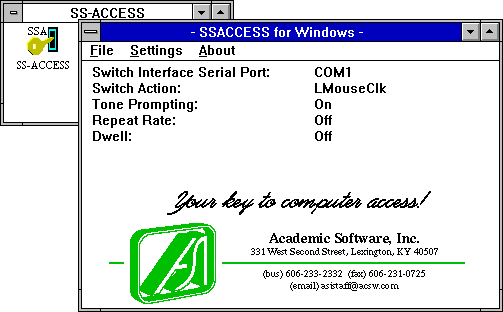
To run SS-ACCESS for Windows, open the SS-ACCESS program group and double-click on the "Your Key..." program icon (Windows 3.1) or select the program using the Start Menu Program List (Windows 95/98). This will open the Setup Window and display all of the current settings as shown below.
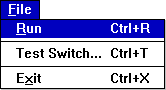 The Setup Window provides three menus: File, Settings, and About. Use the File Menu or the appropriate short cut key combination to run SS-ACCESS, test the operation of the external switch, or quit the program.
When Run is selected, the Setup Window is minimized either as an icon (Windows 3.1) or a task (Windows 95/98) at the bottom of the screen. From this point on, pressing the external switch sends the "Switch Action" setting command to whichever Windows program currently is highlighted and has the focus.
To quit SS-ACCESS, restore the Setup Window by clicking on the minimized icon or task name at the bottom of the screen and selecting the Exit option from the File Menu.
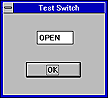 On startup, SS-ACCESS automatically loads previously saved settings and attempts to locate the serial port where the PC switch interface cable is attached. If this fails, an alert message will appear. The external switch may be tested by selecting the Test Switch option from the File Menu. Pressing the switch should toggle the message in the Test Switch dialog box from OPEN to CLOSED.
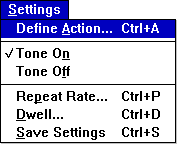 Use the Setting Menu to assign a Switch Action function to the external switch, set switch activation options, and save your new settings on disk to be loaded automatically the next time SS-ACCESS starts up.
Click Tone ON or OFF to activate or deactivate an audible tone response whenever the external switch is pressed.
The Repeat Rate dialog box turns OFF or sets the rate at which the Switch Action will repeat if the external switch is held depressed.
The Dwell dialog box turns OFF or sets an activation delay after the switch is released before the Switch Action occurs. This feature is useful to provide time for the switch user to shift his or her attention from the switch to the display screen where the action occurs.
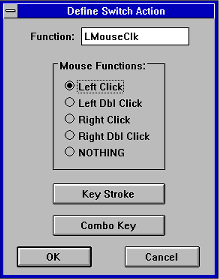 The Define Switch Action dialog box shown below identifies what function will be emulated by the switch. Select a radio button to emulate a mouse click function. Select the Key Stroke button and press a single key (e.g., ENTER, SPACEBAR, TAB, a, b, c, F9, etc.) at the prompt to emulate a single keyboard command. Select the Combo Key button and press a single key at each of two prompts to define a two-key combination command (e.g., Ctrl+Q, Shift+A, Alt+F4, etc.). Click OK to accept the new Switch Action and return to the Setup Window.
 Return to the previous page
 Return to the ASI home page